Remove vocals, make a backing track and build an editable score draft
If you want to practice a melody, learn a bass line or sing over an instrumental backing track, start with a recording you own or are allowed to process. StemTab can separate vocals and accompaniment, or split a mix into six instrument stems, before turning a selected part into an editable score draft. The result needs listening and manual correction: separation can leave unwanted sounds, and note detection can miss or add notes. Use the original recording as a reference rather than treating the draft as a finished score.
From an audio file to a checked score draft
- Import
A recording you own or have permission to use - Separate
Vocals and accompaniment, or six stems - Listen and transcribe
Choose the part you want to study - Correct
Check pitches, note lengths and rests - Export
PDF, MusicXML, MIDI or audio; Web export requires a paid package
What you get—and what still needs your attention
StemTab offers two-stem separation into vocals and accompaniment, or six stems: vocals, guitar, bass, drums, piano and other sounds. You can listen to a stem on its own, combine parts for practice and choose which part to transcribe. The aim is to make a musical line easier to hear and check, not to recreate the original recording session.
Transcription produces an editable draft in standard notation, with MIDI and MusicXML available for further work and PDF for reading or printing. StemTab does not generate guitar tablature (TAB), identify timbre or separate one singer from another. Lead vocals and backing vocals are not split into separate singer tracks. Even an isolated stem can contain overlapping notes or sounds that do not belong to that instrument.
1. Start with your own or an authorized recording
Import a local audio file, or the audio from a video you have permission to process. Before you begin, check what that permission covers. Being allowed to analyse a recording does not automatically give you permission to publish the separated stems, distribute a score or use the music in a public performance.
Listen to the original and pick a short passage you want to understand. A cleaner version of the same recording is usually a better starting point than one with clipping, heavy background noise or repeated lossy compression. Separation cannot reliably restore details that were already lost. Keep the original available throughout the task so you can compare it with the stems and the score draft.
2. Choose vocals and accompaniment or six stems
For singing practice, separating vocals from accompaniment gives you an instrumental starting point. If you want to study a particular instrument, choose six-stem separation instead. A bassist may want to hear the bass line alone; a pianist may want to inspect a chord passage; a drummer may want a version without the drum stem.
Listen to the stems individually before deciding which ones to combine. Check for vocal reverb in the accompaniment, instrument sounds leaking into the wrong stem and softened attacks. A more isolated sound is not necessarily a complete account of what was played, so compare important passages with the original.
The import options let you choose the output goal and the parts to transcribe. While processing runs, the progress view shows its current stage. Loading models for the first time may take longer. Processing time depends on the file and processing conditions; the guide does not promise a fixed completion time.
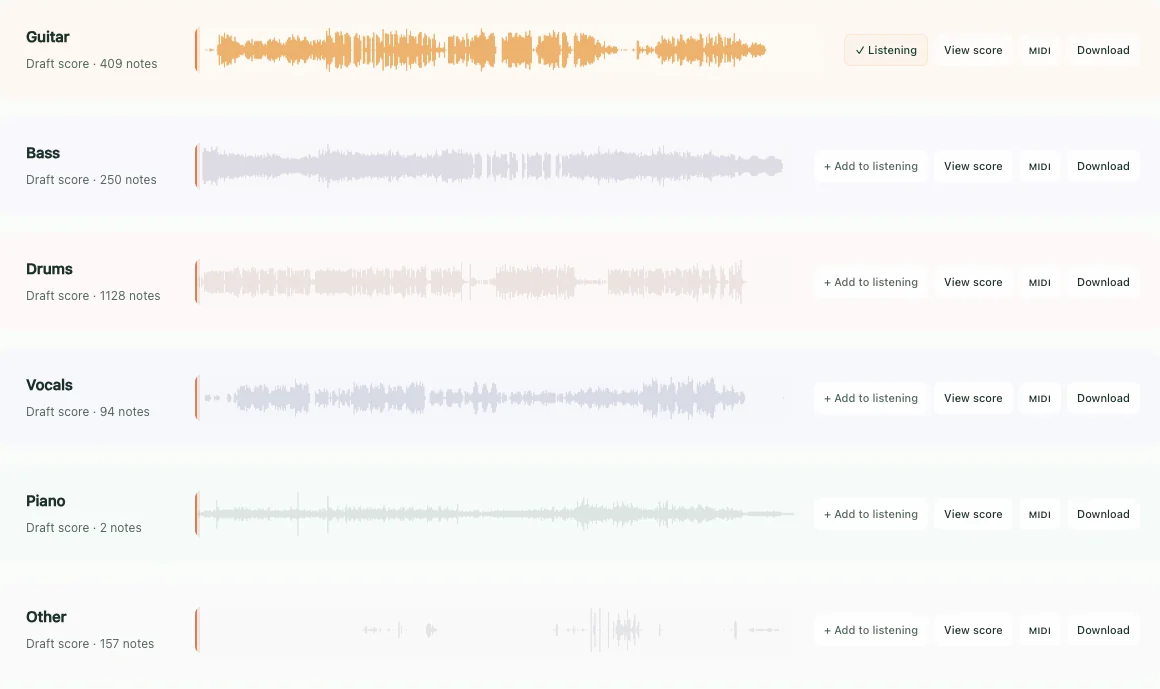
3. Transcribe the part you want to learn
Select the separated part whose notes you want to study and generate its score draft. Working on one part is often easier to review than trying to read the entire mix as a single instrument. Separation still leaves difficult cases: chords, overlapping instruments, short notes and reverb can all affect the result.
If an unexpected note appears, listen to both the stem and the original. It may be a real note that was hard to hear in the mix, a sound that leaked from another part or an error in the transcription. Do not accept it simply because it appears on the staff. Work phrase by phrase and decide what belongs in the part you are practicing.
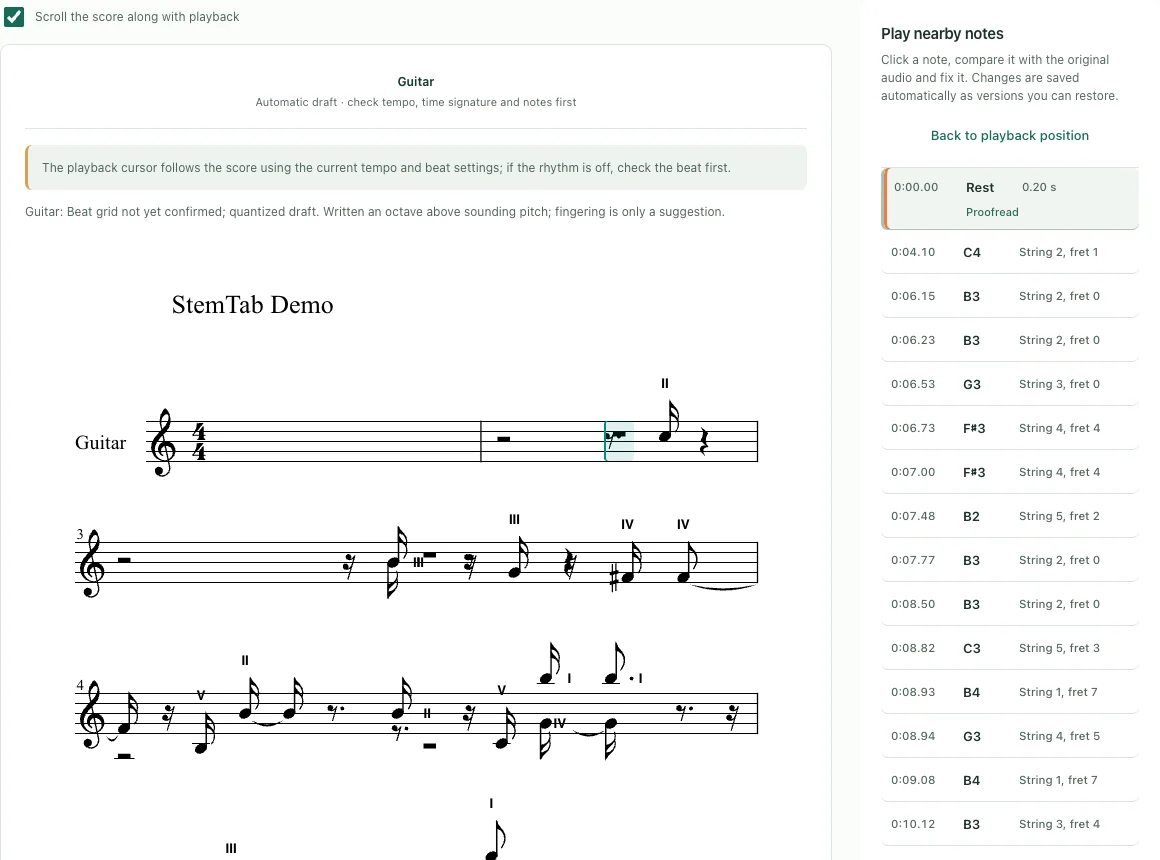
4. Check the notation and piano roll while listening
Review pitches, note lengths, rests and note onsets. Look for doubled notes, chords whose notes start at different times, long notes split into fragments and short notes that should not be there. Play or sing the phrase yourself if that helps you compare the draft with the recording.
The score view helps you read the phrase in musical context. The piano roll shows where each note starts and ends so you can adjust its position and duration. Move between the views and playback as you check the passage. Dense arrangements, heavy reverb and fast playing may need more correction; the draft is a starting point for that work, not a publication-ready score.
5. Choose the right export format
Use PDF to read or print the corrected score. Choose MusicXML to continue editing in a compatible notation editor, such as MuseScore, or MIDI to work with the detected notes in a DAW. To continue editing the notes you checked in StemTab, open the MusicXML file: the original audio file does not contain those corrected notes.
You can also export the separated audio stems for practice and save a StemTab project to return to the work later. Changing the format does not fix mistakes in the draft. Check the notes before exporting, and check your rights before sharing the result. On the Web, exporting and downloading require a paid package.
Build a practice track without drums or bass
Six-stem separation lets you make a practice combination for your instrument. To play drums along with the remaining parts, mute the drum stem and listen to the others together. For bass practice, mute the bass stem instead. You can also listen to the isolated part first to learn the phrase before trying it over the backing track.
Generate a score draft from the separated drum or bass part if you want a visual reference. Check the rhythm and note lengths by ear; for a bass line, check the pitches too. Leakage from the muted instrument can remain in the other stems, so the practice track is not guaranteed to be completely free of that instrument.
When the separation or the notes need more work
Vocal harmonies and reverb may remain in an instrumental track. Guitar, piano and other instruments share frequency ranges, and separation may weaken details you need for transcription. Listen at a comfortable level and compare the same passage in the original and the stem before changing the score.
If the draft contains too many notes, first work out which sounds actually belong to the selected part. Check small sections instead of correcting a long passage all at once. A clear solo line may be easier to review than a dense chordal mix, but neither clean separation nor a finished automatic score is guaranteed.
Web preview, paid export and supported devices
The Web service uses processing minutes without a subscription. Paid processing is counted once against the source audio duration, regardless of how many stems you choose. Re-exporting an already unlocked result does not use more processing time. Purchased processing minutes do not expire; check the pricing page for the current packages and conditions.
Each verified email address receives a one-time five-minute free preview on the Web. Exporting and downloading on the Web require a paid package. This preview allowance does not apply to the iPhone or iPad app: their purchase conditions are shown on the App Store.
Web Studio uses cloud processing. The iPhone and iPad app processes and stores projects on the device by default. The separately purchased Mac app is available in the Mac App Store. Only process recordings you own or have the necessary permission to use; StemTab does not supply songs or sheet music for download.
Choose stems, check the result and understand each plan
Stem separation makes a part easier to hear; it does not produce a finished score by itself. Import audio you are allowed to use, choose two stems or six parts, listen section by section for bleed, then select the part to transcribe into an editable draft. Correct pitch, duration, rests and rhythm against the recording before export. The model cannot split individual singers, identify timbres or recover original studio tracks, and it does not generate guitar TAB.
Paid plans let you export MP3, WAV and FLAC audio, plus PDF, MusicXML and MIDI from a corrected score draft; a .stemtab file retains the project. Choose an individual stem or a mix of selected parts deliberately. Only process recordings you own or are authorised to use: importing a file does not grant permission to arrange, perform publicly or publish it. StemTab does not supply songs or scores for download.
Open Web Studio to use cloud GPU processing. Web usage is charged once by the original audio duration, whether you choose two or six stems. Each verified email has a one-time, Web-only 5-minute free preview; export and download require a paid processing-minute plan. Purchased minutes accumulate and do not expire, with no subscription; see the pricing page for current plans. The iPhone and iPad apps process and store projects on device by default and do not inherit that Web allowance. Android previews the first 30 seconds free, then requires a separate one-time purchase for full processing and export; purchase and restore need a connection, while unlocked on-device features have no subscription. An Android unlock does not include Web or iOS purchases. The separately purchased Mac app is available in the Mac App Store.
Frequently asked questions
Can I remove vocals and get a finished score in one click?
You can separate a recording and transcribe a selected part, but the result is an editable draft. Listen, check and correct the notes before using it as a practice score. Separation can leave other sounds in the stem, and automatic note detection can miss or add notes.
Can I make a backing track without drums or bass?
Choose six-stem separation, mute the drum or bass stem and listen to the remaining parts together. You can generate a score draft from the isolated part as a reference, but it needs manual checking. Sounds from the muted instrument may still remain in the other stems.
Can I keep the backing vocals and remove only the lead singer?
No. StemTab does not separate lead and backing vocals or different singers. It separates vocals as one stem from the accompaniment, and some vocal sounds may remain in the accompaniment.
Can I open the result in MuseScore?
Yes. Export the score draft as MusicXML and open it in MuseScore or another compatible notation editor. Use the MusicXML to continue working on the corrected notes; the original audio file contains the recording rather than those edits. Check the draft before exporting. Web export requires a paid package.
What can I try for free?
On the Web, each verified email address receives a one-time five-minute free preview. Exporting and downloading require a paid package. The preview allowance does not apply to the iPhone or iPad app; check their purchase conditions on the App Store.
Does StemTab create guitar tabs?
No. StemTab creates editable standard-notation score drafts and MIDI, not guitar tablature (TAB). You can also export the score as MusicXML or PDF after checking and correcting it.
Which devices can I use?
You can use Web Studio in a browser and the iPhone and iPad app available on the App Store. The separately purchased Mac app is available in the Mac App Store. The iPhone and iPad app processes on the device by default; Web Studio uses cloud processing.
Is the Web free preview the same as Android's?
No. Each verified email gets a one-time 5-minute preview on the Web; export requires a paid processing-minute plan. This allowance does not apply to iPhone or iPad. Android previews only the first 30 seconds and needs a separate one-time purchase for full processing and export; purchase or restore requires a connection.
Audio to MIDI Converter Online: Edit Notes from Audio
StemTab and Moises: compare stem separation workflows
AI Stem Splitter: Separate Vocals and Instruments